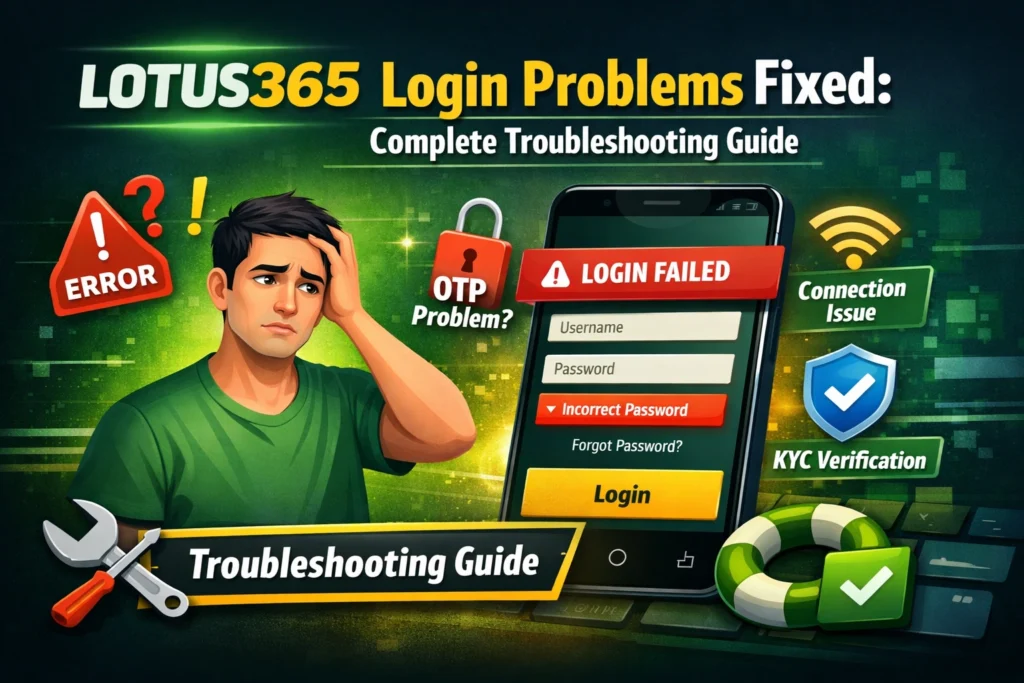
How to Reset Lotus365 Password If You Forgot It
Being locked out of a betting account is one of the worst experiences that can occur, particularly during a live match, when your wallet balance is waiting, and each minute of downtime feels like money lost. You are not alone if you have forgotten your Lotus365 password, and in most cases, it is possible to fix the situation.
The Lotus365 login system utilizes standard OTP based authentication for recovers which is quite effective most of the times. However, the recovery flow may be erratic during busy periods like the major cricket tournaments, or weekend football matches. OTPs arrive late. Sessions will terminate before you complete. The app crashes with a generic message that doesn’t provide any useful information.
This guide is for just those times. Provides a step-by-step look at the actual recovery process, the reasons for each step going wrong, and how to proceed when the basic instructions don’t work. Platform-aware troubleshooting for getting back into your Lotus365 account – no fluff, no generic steps.
Table of Contents
Why Lotus365 Password Problems Happen
Most users would think that they have forgotten their credentials. It is often the case, but Lotus365 password problems can be caused by a variety of reasons that most people don’t know.
Forgotten credentials The most basic reason is forgotten credentials. If you haven’t logged in for a while or you registered your account in a rush, you probably didn’t save the password correctly.
Repeated failed login attempts Most betting platforms, including Lotus365, impose a temporary ban on users after a certain number of failed login attempts. If more than one incorrect entry is made, the system recognizes it as a possible brute force attack and starts to throttle or block access. The system might still be accepting the right password by the third or fourth guess, but you will not be able to get through the system until the cooldown is over.
Suspicious login detection Another typical trigger is suspicious login detection. The website might red flag it if you attempt to log in from another city, switch networks, access it through a VPN, or log in using a new browser, and require further authentication before you can log in. This is not a fault, it is a security feature.
Expired sessions Many users are surprised when their sessions expire. If you remained logged in on your phone, but you deleted the app cache or re-installed the app, your session cookie has been removed. It will prompt you to enter credentials again, and if you can’t remember them, you are beginning a recovery process.
Device switching Switching devices complicates matters further. Sometimes this is considered a new login context, requiring extra security checks when switching between the same phone and a new phone or when switching from Lotus365 app to browser.
Browser cache and cookie conflicts are underestimated causes of login failure. Old cached sessions, mismatched cookies, or corrupted local storage can prevent even correct credentials from working properly in a browser environment.
Finally, app reinstalls and updates Last but not least, app reinstalls and updates will clear saved credentials, particularly if you hadn’t been using a password manager. Many users know that they never actually remembered their password but it was auto-filled, and that’s no longer possible.
Step-by-Step Lotus365 Password Reset Process
This is the main recovery procedure. Do each step exactly and do not rush through, particularly the OTP step, where most failures occur.
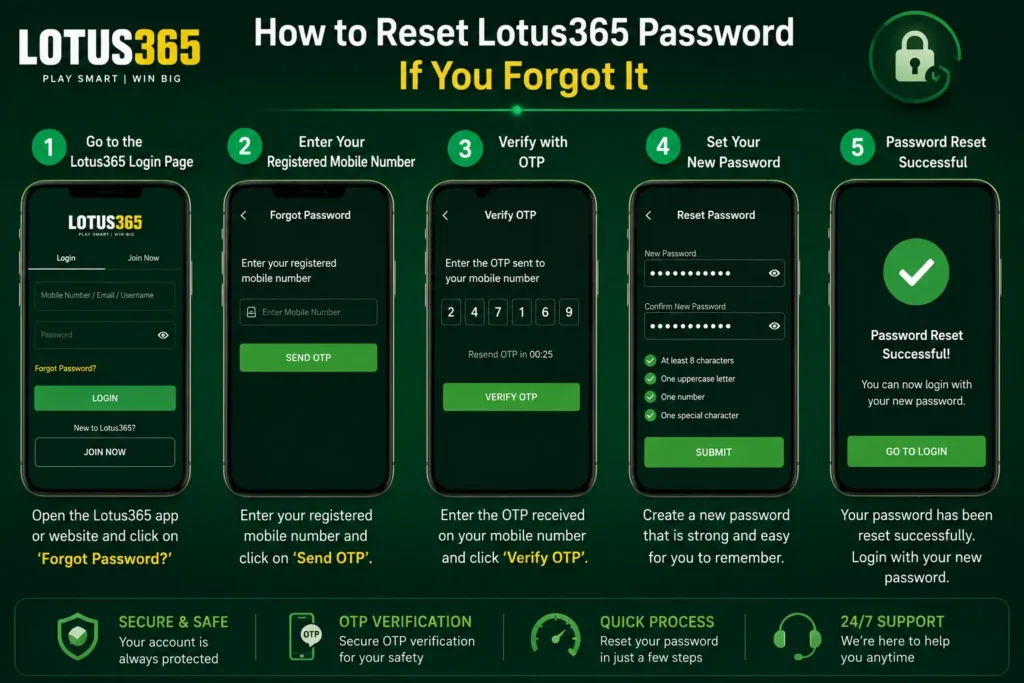
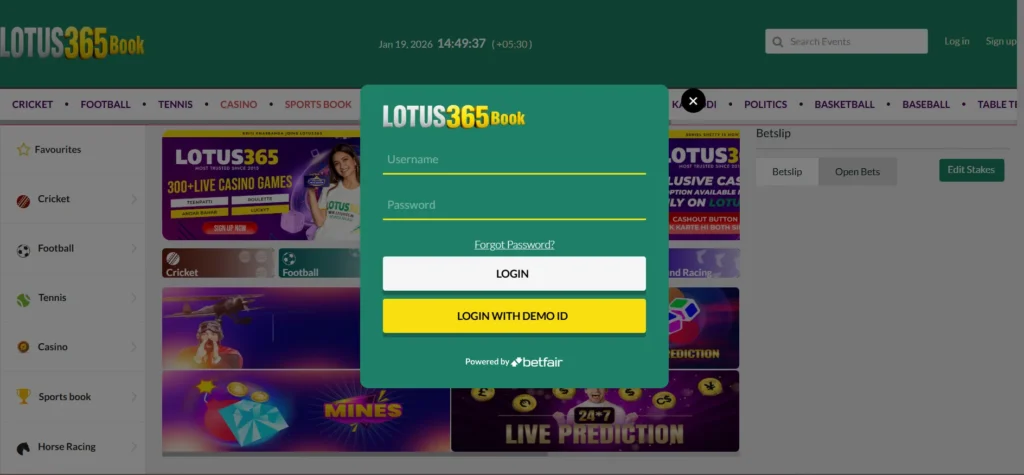
Step 1: Open the Login Page
Navigate to the official Lotus365 online platform via your browser or open the Lotus365 app on your device.Access the official Lotus365 website via your browser or open the Lotus365 app on your device. Avoid any third party links or saved bookmarks from non-official sources. Phishing sites look like the login screen and can trick you into giving them your username and password.
Step 2: Click “Forgot Password”
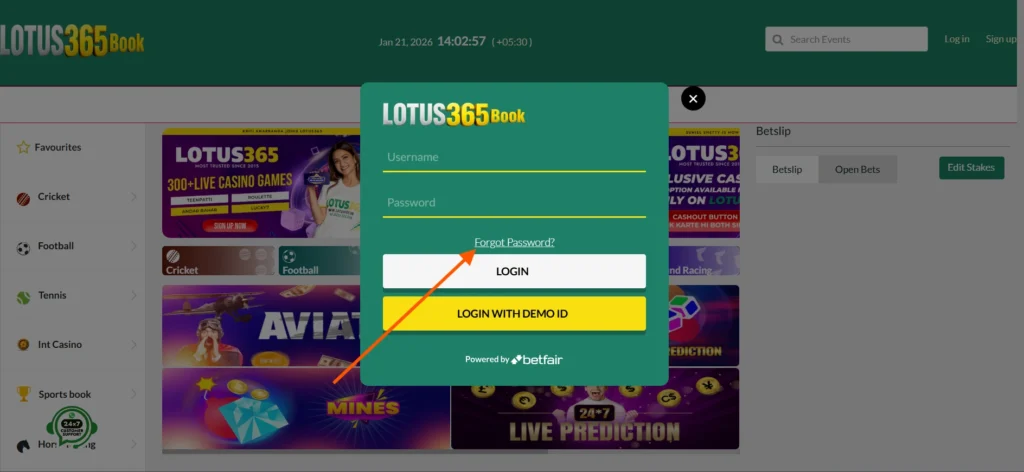
On the login screen, find the Forgot Password link. Usually it’s located under the password text box. Tap or click it to start the recovery flow.
Step 3: Enter Your Registered Details
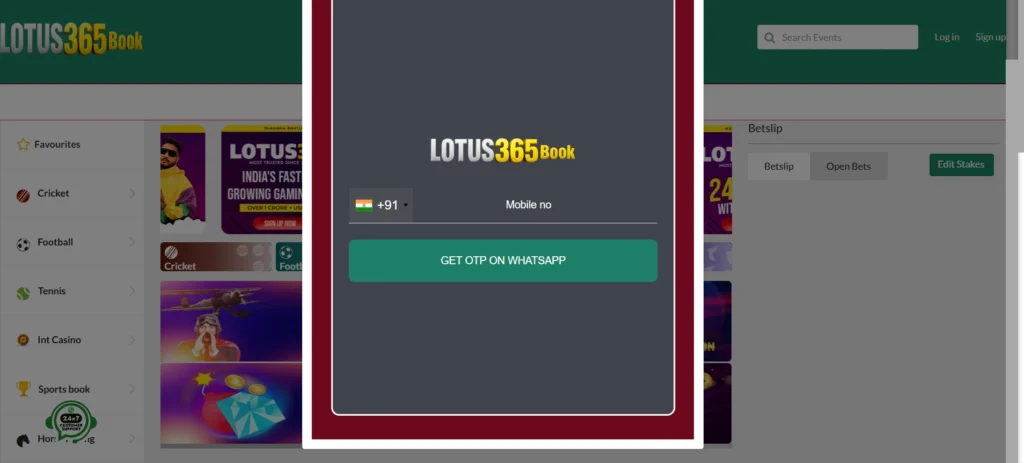
You will be required to enter your registered mobile number (the one associated with your Lotus365 ID). This is non-negotiable. This number is used by the platform to verify your identity and deliver the OTP.
If you do not remember which number you used when you registered, you can check on the old SMS messages for a welcome message from Lotus365 or on the receipts of the payments made to your account.
Step 4: Receive and Enter the OTP
Lotus365 Password Reset Process: A step-by-step guide to resetting your password. OTP (One-Time Password) will be sent to your registered mobile number through SMS. Some accounts might also offer a WhatsApp OTP delivery option. Enter the OTP as it is received, no spaces or changes. OTPs are only valid for a short period of time, usually for 5 to 10 minutes.
Step 5: Create a New Password
Once OTP verification is complete, you’ll be prompted to create a new Lotus365 password. Choose something strong and unique. Do not use the same passwords on UPI apps, email or other betting sites. When prompted, confirm the new password.
Step 6: Log In With New Credentials
Once the reset is confirmed, go back to the Lotus365 login screen and login with your registered mobile number / username and new password. If the login is successful, you will be returned to the login screen. If it doesn’t, proceed to the troubleshooting sections below.
What to Do If OTP Is Not Arriving
This is where most users get stuck. The OTP step is easy, but it is the most prone to failure part of the recovery process, and failure is often beyond your control.
Telecom and SMS Congestion
Telecom SMS congestion can slow OTPs even when there is not a lot of traffic on the platform. This occurs more often at night and on weekends when the networks are busy. Some telecom operators also send transactional SMS via various gateways with different delivery time. It is possible that the problem is not the platform, but your carrier if your OTP is always late.
DND (Do Not Disturb) Filtering
Promotional SMS can be blocked if your number is in TRAI’s DND (Do Not Disturb) registry in India. However, transactional OTPs should still go through on DND-registered numbers. If they aren’t coming in, see if your network carrier has set a filter that’s too wide and is blocking transactional messages. The solution is to get in touch with your carrier and request that they add transactional SMS to their whitelisting list.
Multiple OTP Requests Invalidating Each Other
Each send of OTP will cancel the previous OTP. If you are entering one of the old codes and you have already clicked resend 3 or 4 times, you will not be able to enter the code. Wait for the latest OTP, type in the new one and do not ask for another one right away.
Airplane Mode Refresh
The easy and effective solution: turn airplane mode on for 30 seconds, then turn it off. This will cause your device to re-register itself with the network tower, which can clear away a “stuck” SMS delivery queue. Wait for 1 minute after turning off the airplane mode before asking for a new OTP.
Dual SIM Issues
If your phone supports two SIMs, ensure the phone’s primary slot has the registered number’s SIM. OTPs for betting platforms are sent to a particular number. If this SIM card is in the secondary slot, it will have a lower network priority and delivery might be delayed or even go wrong.
WhatsApp OTP
If you are facing issues in delivering SMS OTP then please check if your Lotus365 account has WhatsApp OTP option enabled. There are users who have WhatsApp registered to a different number than their SMS SIM. Be sure to look for the correct app on the correct device.
App and Network Sync Delay
When you are travelling on a weak mobile network signal, there may be a lag between the time the OTP is sent and it is received by your app to take the next step. Frequently, it is a problem when using OTP delivery, but switching to WiFi connection before attempting OTP delivery can solve the issue.
Why Lotus365 Login Still Fails After Password Reset
The reset is done! Your new password is: You reset to the login screen and it still doesn’t work. This is frustrating but there are specific reasons why this occurs which can be corrected.
Browser Cache and Session Cookies
If you are signing in via browser, then the previous failed login attempt may have added “cached data” to the browser that can disrupt the new login. Could be loading an old session state that has expired. Fix: Clear the Browser cache and cookies completely and close the browser and reopen it and try again.
Session Timeout During Reset
The password reset procedure has a session window. If you took too long at any step, you might be waiting for an OTP or were distracted and returned 15 minutes later, the reset session may have expired. You will have to begin the process once again.
Wrong Login Method
Depending on the manner in which you’ve registered your account, you can log in to Lotus365 using several different methods. Even if you register by mobile number and try to log in by username (or the other way round), the password will be incorrect. Use the same code used at registration.
App Login Loop
There is a problem with some users that the Lotus365 app seems to accept the credentials, load the app and then goes back to the login screen. This is typically a cache or session data problem in the application.
Force close the app, clear app’s cache from device settings (not just app data), and restart the application. If this doesn’t resolve the issue, then uninstall and reinstall the newest version of the app.
Outdated App Version
Backward compatibility issues can arise if the Lotus365 app is not up to date with the current back end. Your app may be running an older authentication protocol that doesn’t match the new password you just changed. Update the app and then attempt login.
Delayed Authentication Sync
In very rare instances, it takes a few moments to propagate the password change throughout the platform’s authentication servers. Do not logon until 5 minutes after a successful reset. Sometimes, after resetting, a “Wrong password” message will appear, even if the reset was successful.
How to Recover Lotus365 Account Without Registered Mobile Number
This is the most complicated recovery situation. Standard OTP based recovery is not possible if the mobile number linked to your Lotus365 ID is no longer available. You will have to go through the support team and undergo a manual identity verification process.
Contact Support With Proof of Ownership
Contact the official Lotus365 customer support via the chat or email. Let them know that you have lost the registered number.
- The registered mobile number (even if you no longer have the SIM)
- Your full name registered on the account (required)
- The approximate date of account creation is based on the time the account was registered.
- The amount that was last deposited or withdrawn.
- The payment method used (such as UPI ID, bank account, etc.)
KYC Documentation
This greatly accelerates recovery if your account is KYC verified. The support team can compare the ID proof that you submitted with the account. Keep a copy of the Aadhaar, PAN or any other document you have submitted with them.
Transaction Verification
Your transaction history is a powerful identifier. Specific wager amounts, game types, and date of deposits are good things to have because if you can provide any of the three and it matches what’s on the record, it’s a clear sign that you are the owner of the account.
Recovery Timeline
Manual account recovery typically takes 24 to 72 hours. This is based on the volume of support queue. Response times may be longer during the peak season of the IPL. Do not create several tickets in the support channel. It can even delay your case. Submit and wait for a response.
Common Lotus365 App Login Problems
The app can sometimes have login problems that don’t occur on the browser version.
- If you have any loading screen stuck, close the app, delete the app cache, and restart the App.
- Alternatively, switch between mobile data and Wi-Fi, and then try again (OTP verification loop).
- If you have a login problem after updating, you can either clear some of the app data or reinstall the latest version of the application.
- If the app is crashing on signing in, uninstall and reinstall the app from the official source.
- Use a stable internet connection, preferably Wi-Fi (slow authentication).
- Check if the Android or iOS version is outdated, and update if necessary.
How to Create a Secure Betting Password
These are simple steps to ensure security of your Lotus365 account:
- Have a strong and unique password not used elsewhere.
- Don’t use the same UPI or banking password again.
- Don’t put your name, phone number, or birthdate.
- Use a phrase that is a combination of words and numbers, such as: `RiverMango@12`.
- Login from trusted own devices only.
- Do not enter the information of your login, even if the person is pretending to be customer service.
Security Tips After Password Recovery
After recovering your account, here are some tips to keep your account safe:
- After resetting your password, log off of all other devices.
- Change reused passwords on other websites or apps.
- Don’t click on phishing links and only use the official Lotus365 support.
- Avoid recovery agents on WhatsApp or social media, as they are scams.
- Review your transactions to see if there is any suspicious activity.
- If available, enable WhatsApp OTP.
When to Contact Lotus365 Support
Contact support if:
- Your registered mobile no. is no longer available.
- You are still unable to login even after resetting your password.
- You see unusual activity in your account.
- Your request for recovery has been outstanding for more than 24 hours.
Before Contacting Support
Make these details easy to access to facilitate verification:
- Registered mobile number
- Registered name
- Recent transaction details
- KYC documents (where applicable)
Conclusion
If you forgot your Lotus365 password, it’s not a problem, it’s just frustrating. The platform’s recovery system includes OTP verification, identity confirmation and support escalation, all of which are intended to help you get back in safely. The secret is to know where it can go wrong in that process, and what to do at each point of failure rather than trying the same step over and over again.
Do not worry if OTPs are not received. Clear the App Cache if it is looping. If the standard reset does not work, call support and provide accurate information about your account. When you’re back in, spend 5 minutes creating a strong, unique password and checking your security settings. That helps to make the next incident (if there is one) much easier to resolve.
Frequently Asked Questions
What is the time taken for the Lotus365 password reset OTP?
Normal conditions: 30 to 90 seconds. It takes 5 to 15 minutes during IPL or high traffic. Wait before requesting a resend.
My Lotus365 login is working but the app keeps logging me out why?
This is typically a session timeout or App Cache problem. Clear the device cache and log in to the Lotus365 app once more.
How to reset Lotus365 password without registered mobile number?
Not via the regular pathway. You will have to reach out to Lotus365 support and manually verify your identity via account information and KYC documents.
Why does my Lotus365 account get locked after a few wrong password attempts?
As a security measure, the platform has a login cooldown feature after multiple failed attempts. Try again after 10-15 minutes or start a password reset if you don’t know the correct password.
Is it safe to reset my Lotus365 password on mobile data?
Yes, but if OTP delivery is not working then try to switch to WiFi before trying again. OTP SMS may be delayed due to data congestion on mobile devices.
What should I do if someone else accessed my Lotus365 account?
Change your password right away, log off all devices if possible, check your transaction history and report the unauthorized access to Lotus365 support.